The Thrustmaster TS-XW is a solid base. But it won’t feel like one if your force feedback dies mid-corner, the wheel refuses to centre, or your PC pretends nothing is plugged in.
Most TS-XW problems trace back to a handful of causes, and most of those are fixable in under 20 minutes with no tools.
This guide covers power, USB, drivers, firmware, calibration, and game settings. It doesn’t cover cracking the base open. If you’ve got a damaged USB port, grinding from inside the housing, or a wheel that still won’t be detected after clean installs and known-good cables, that’s hardware territory. Skip to the SimRigSupport section and save yourself the headache.
Common TS-XW Problems
If your issue matches one of these, you’re in the right place:
- Force feedback cuts out mid-session or fades over time
- FFB feels weak, harsh, or rattly
- The wheel won’t centre properly, or calibration loops forever
- PC or Xbox doesn’t detect the wheel, or the connection drops randomly
Quick Fixes to Try First
Before you start digging through game menus and driver settings, clear the basics. They’re low effort, and could be the fix you need.
Power and Cables
Plug the power brick straight into a wall outlet. Avoid extension leads, cheap power strips, and multi-adapters. They sag under load and cause FFB dropouts or random disconnects. Thrustmaster also tells you to plug directly into the wall for updates and everyday use.
USB goes straight into a rear motherboard port on PC, or a rear USB port on Xbox. No hubs, no front-panel ports, no extension cables.
Make sure the rim is fully locked onto the base, and every connector feels firm when you give it a tug.
These three alone fix a lot of “my wheel is haunted” forum threads.
Drivers and Firmware
On PC, keep this simple:
- Download and install the latest PC Drivers Force Feedback package from the official TS-XW support page.
- Open the Thrustmaster Control Panel and check the firmware version in the top-right corner. V8.07 is the current TS-XW firmware.
- When you run the firmware updater, don’t unplug USB or power until it finishes and the wheel recalibrates itself.
Install the driver, confirm firmware, let the base do its startup spin, then move on.
Give it a clean power cycle
- Turn the wheel off and unplug both USB and power
- Wait 30 seconds
- Plug the power back in first, then USB
- Let the wheel auto-calibrate fully before launching any game
If the problem was a temporary USB glitch or software hiccup, that would’ve fixed it.
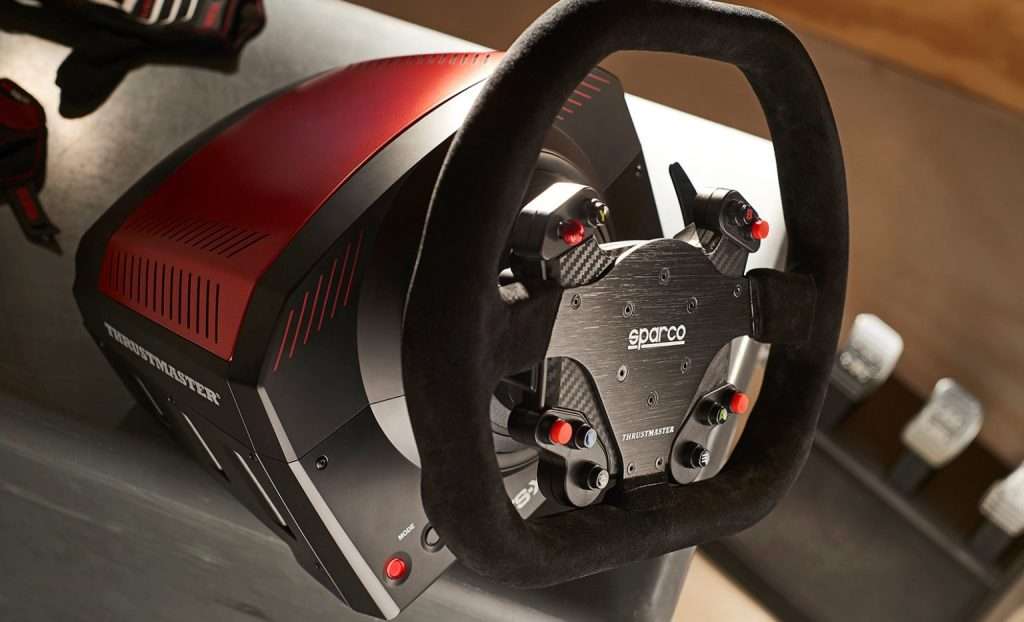
Image Source: Thrustmaster
Sorting Out Force Feedback Issues
Once power, cables, and firmware are checked out, FFB problems usually split into two: FFB that dies, and FFB that just feels off.
When Force Feedback Cuts Out Mid-Race
Most of the time, this is thermal protection or dodgy power delivery, not a dead motor.
Work through this order:
- Drop in-game FFB gain by 15–20%. If you’ve been running everything maxed out, bring it down to around 70–80% and test the same car and track. Belt-driven bases like the TS-XW throttle themselves when you push maximum force for long stints.
- Give the base room to breathe. If it’s boxed inside a tight rig enclosure, shoved against a wall, or sitting in a warm room, get some airflow around it. A cheap desk fan pointed at the housing does the job.
- Move the power brick to a direct wall socket. Under heavy FFB load, a tired power strip or long extension cable can’t deliver what the base wants. That shows up as brief dropouts or the FFB suddenly going limp.
If you can run a full session at 70–80% gain with decent cooling and clean power, you’ve found your ceiling.
If FFB still dies at roughly the same point even after all that, you’re probably looking at a hardware issue. Stop pushing it and get it looked at.
When Force Feedback Feels Wrong
Start with a solid baseline, then tweak by symptom. Chasing sliders at random gets you nowhere.
Set a sensible starting point in the Thrustmaster Control Panel:
- Overall strength: 75–100%
- Constant and Periodic: 100%
- Spring and Damper: off or very low, depending on preference
From there:
Weak FFB
Check that your game profile is built for a TS-XW or similar belt-driven base, not a 15–20 Nm direct-drive wheel. Community presets are often tuned for beefier hardware and will feel lifeless on a 6 Nm base. Make sure you haven’t doubled up on cuts by running low gain in both the driver and the game.
Chattery or “Busy” Feel
Turn down Road Effects, Surface Detail, or whatever your game calls its surface texture sliders. These stack extra vibration on top of the core FFB and make the wheel feel like it’s constantly buzzing. Reduce the minimum force if it’s set high. That can create a restless centre where the wheel never quite settles.
Mechanical Rattle That Won’t Go Away
If you hear a clear rattle or scraping from inside the base and backing off the gain doesn’t help, that’s belt or motor territory. Pushing through it will only make things worse. Time to stop and hand it to someone who can crack it open properly.
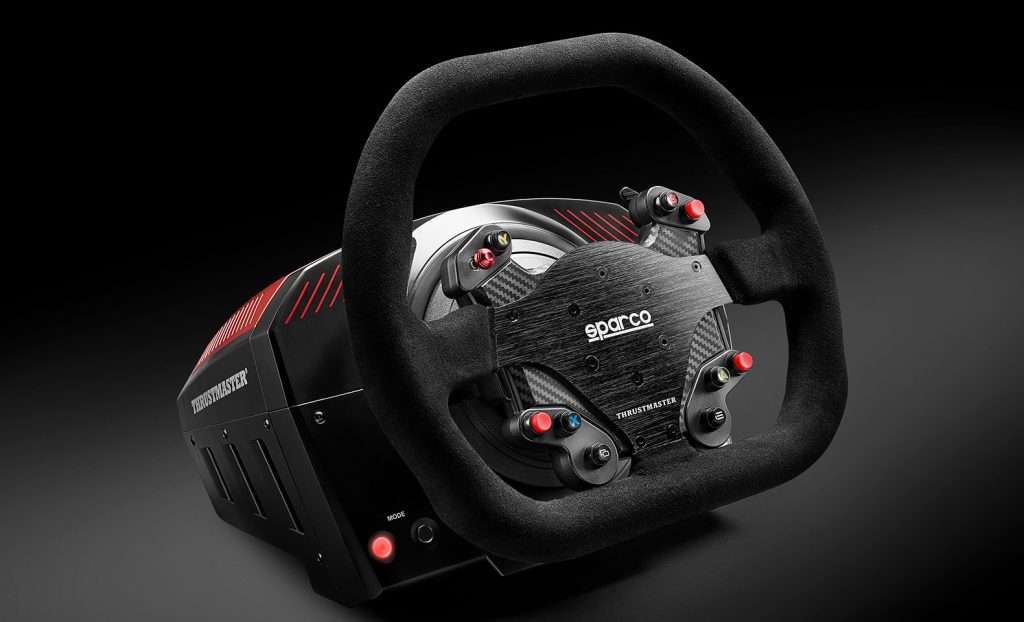
Image Source: Thrustmaster
Calibration and Centring Problems
When the wheel won’t point straight, everything else feels off.
Common signs:
- The wheel spins to lock on startup and never settles
- The car pulls to one side on a straight
- There’s a dead zone or notchy feeling around the centre
Reset in Windows First
- Open the Windows Game Controllers panel (type joy.cpl into the Start menu)
- Select the TS-XW, go into Properties, then Settings, and hit Reset to default
- Turn the wheel off, unplug USB and power for 30 seconds, then reconnect power first, USB second, and let it finish its startup calibration
If the wheel now sits straight in both the Windows tester and your games, that’s it sorted.
Recentre From the Rim
If it still feels slightly off:
- Set rotation to 900° in the Thrustmaster Control Panel
- Turn full lock left, full lock right, then return it to true centre
- Hold your rim’s recentre combo until the LED flashes
On most Thrustmaster rims, it’s a face button plus both paddles plus MODE. If yours doesn’t match, check the manual for your specific rim.
If the wheel still slams into its end stops on every boot or never finishes calibration and just loops, you’re not fighting settings anymore. That’s firmware corruption or sensor trouble, and no amount of button-mashing fixes that.
When Your PC or Xbox Won’t Detect the Wheel
Connection problems are frustrating. They look exactly like a dead base, even when the hardware is fine.
PC
If the wheel powers on and does its startup spin, but doesn’t appear in Game Controllers or get picked up by your sim:
- Try a different rear USB port on the motherboard. Skip front-panel ports and hubs.
- Check that the full PC Drivers Force Feedback package is installed from Thrustmaster’s site, not just a standalone firmware tool.
- Open Device Manager and plug the wheel in. If an “Unknown device” appears, Windows doesn’t have the right driver. Reinstall the package, reboot, and try again.
If nothing changes in Device Manager when you plug and unplug the wheel with a known-good cable and port, that’s a bad sign. You’re probably looking at a damaged USB socket or a board-level fault. Software won’t help you there.
Xbox
The Xbox side is simpler but fussier about order.
- Set the mode switch to Xbox before you connect anything else
- Plug the power brick into the wall
- Plug the USB into a rear port on the console
- Power on the Xbox
Skip hubs and front ports. If the console still doesn’t react, test that same rear port with a controller or USB stick to rule out the console itself.
If Xbox sees the wheel in Accessories but a game ignores it, the problem is usually on the game’s end. Create a fresh controller profile and rebind from scratch. Forza titles have a habit of corrupting wheel profiles, and starting fresh is better than chasing a broken save.
If the wheel still drops mid-race or vanishes randomly after all this, it’s a hardware problem, not settings.
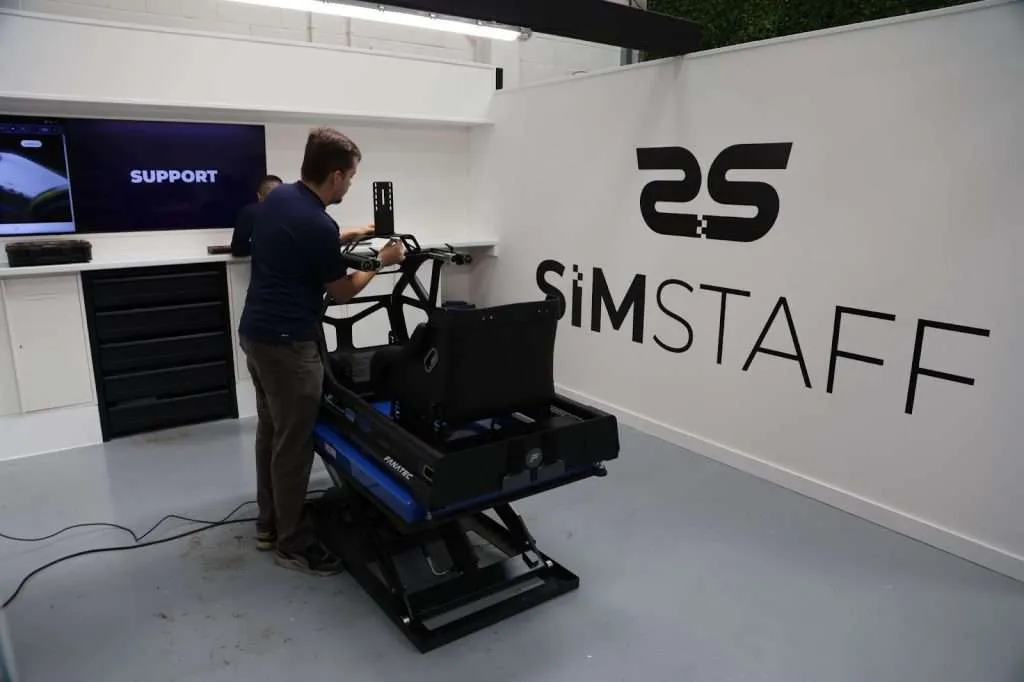
Image Source: SimStaff
When to Call SimRigSupport
At some point, trying one more settings tweak just burns time. If you’ve worked through the fixes above and the wheel still misbehaves, it’s probably not a settings problem.
Signs it’s time to hand it off and book a free consult with SimStaff:
- The USB port feels loose, wiggles, or has bent pins
- You hear grinding, scraping, or rattling from inside the base, even at low FFB
- FFB keeps cutting out at modest gain in a cool room
- The wheel won’t calibrate or be detected after clean driver installs and good cables
Those are hardware problems, not settings.
That’s where SimRigSupport comes in. Proper diagnostics, in person or remote, and repairs using genuine parts instead of guesswork. You get a TS-XW that works again, and your next race night is spent on track instead of buried in forum threads.