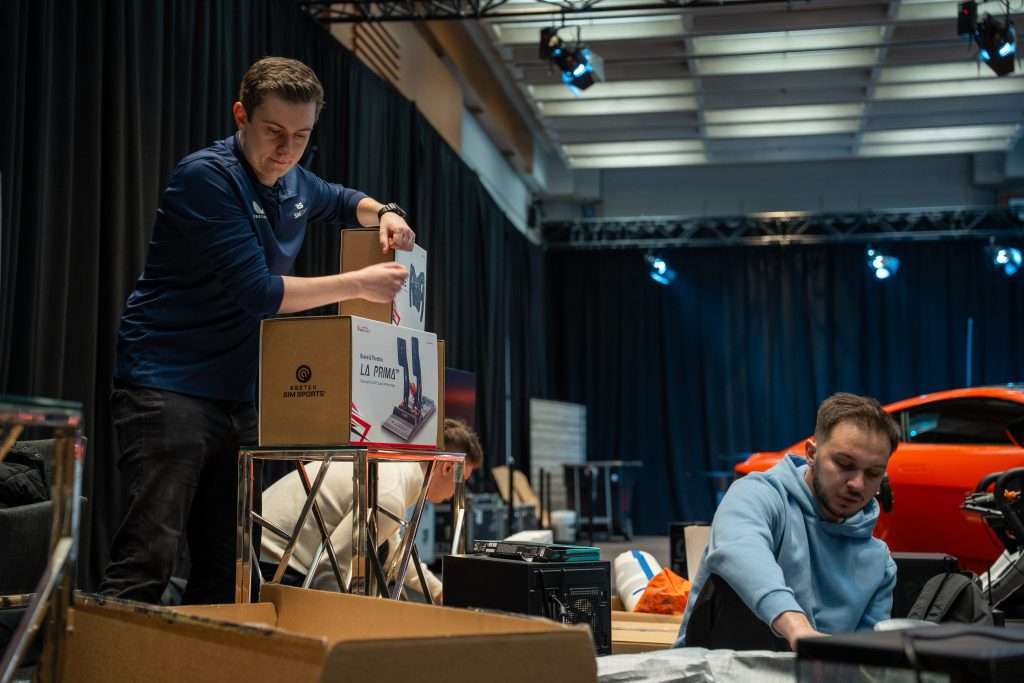
Christmas morning, the new racing wheel is out of its box, but the game is still downloading, and nobody remembers the account password.
Even after the download finishes, there’s a bit more to sort out. The wheel needs to be recognised by the game, the pedals might need calibrating, and some models require their own software before you can start racing.
Existing rigs can cause trouble too. A loose USB connection or a game update that changes your settings is enough to delay the first race, even if everything worked fine last week.
It’s worth checking the software and hardware a few days before Christmas, with enough time to fix anything that isn’t working properly.

Image Source: SimStaff
Check Compatibility and Finish Your Updates
Bought a racing wheel as a Christmas gift? Check that the exact model works with the intended console and game before wrapping it. For example, Logitech’s G29 supports PlayStation and PC, while the G920 supports Xbox and PC.
A few days before Christmas, download the games you’re planning to play, whether that’s iRacing or Assetto Corsa Competizione (ACC). Large downloads can take longer than expected, particularly when several people are sharing the same internet connection.
On PC, check Windows Update, your graphics drivers, and any pending downloads in Steam or your usual game launcher. Console owners should check for system and game updates, too. PS5 users can enable automatic updates in Rest Mode, provided the console stays connected to the internet.
Check your available storage space and use an Ethernet cable for large downloads if your Wi-Fi connection is unreliable.
Once the downloads finish, open each game to check for additional updates, sign in to your account, and confirm that any required subscription is active.
New racing wheels may also need manufacturer software for configuration or firmware updates. Tools such as the Fanatec App and MOZA Pit House let you configure compatible hardware on PC. Follow the instructions for your exact model and don’t disconnect or switch off the equipment during a firmware update.
If your existing wheel works properly, save your current settings and check what any optional firmware update changes before installing it. There’s no reason to rush an update immediately before Christmas.
Setting up new equipment from scratch? SimStaff’s beginner setup guide covers installing drivers, calibrating controls, and getting everything working.

Image Source: SimStaff
Inspect the Cockpit, Cables, and Power Connections
Switch off the equipment and check the bolts securing your wheelbase, pedals, seat, and cockpit frame. If anything has worked loose, tighten it with the correct Allen key or spanner, following the manufacturer’s instructions.
Check the wheelbase’s power connection and make sure you’re using the manufacturer’s approved power supply. Any extension leads or power strips should be suitable for the equipment connected to them and should never be overloaded.
Look around the pedals and beneath the seat for loose cables. Keep wires clear of moving pedals, seat rails, and motion equipment, using Velcro ties to secure excess cable to the frame.
If your wheel occasionally disconnects on PC, try plugging it directly into a USB port rather than through a hub. Bear in mind that changing USB ports can require you to recalibrate your controls in iRacing.
Give the PC’s cooling vents a look too. If they’re dusty, shut down and unplug the computer before cleaning accessible vents with canned compressed air, following the manufacturer’s cleaning instructions.
If children will be using the rig, check the wheel manufacturer’s age and safety guidance first. Some direct-drive wheelbases, including Fanatec’s CSL DD, aren’t suitable for children. Follow those restrictions even when force feedback is turned down.

Image Source: SimStaff
Take a Short Test Drive
With everything connected and updated, launch your racing game and drive for five to ten minutes. A wheel can complete its usual startup rotation and still have problems once you’re on track.
Run through these checks while driving:
- Steering: The wheel responds correctly in both directions and recentres as expected.
- Pedals: The throttle and brake register correctly, reach their full input range, and return to zero when released.
- Force feedback: The wheel provides steering resistance and feedback without cutting out unexpectedly.
- Other controls: Paddle shifters, wheel buttons, and any connected shifter or handbrake respond correctly.
- Display and audio: The game appears on the correct screen, with sound coming through your chosen speakers or headset.
If the throttle won’t reach 100%, the brakes remain slightly applied, or the steering feels off-centre, open the game’s input settings and recalibrate the affected controls. iRacing’s official calibration guide explains how to deal with these problems.
Once everything works as expected, save your settings or wheel profile if your software allows it.

Keep Spare Cables and Support Details Handy
A spare HDMI or DisplayPort cable and a compatible USB data cable can be useful if a connection fails. Check the connectors before buying replacements, particularly for wheelbases that use detachable USB cables. Some USB cables are designed for charging only and won’t carry steering inputs.
Keep your Steam, iRacing, or console account passwords in a password manager, along with access to the email address or phone number used for verification codes.
For PC troubleshooting, Microsoft’s Quick Assist lets someone you trust view your screen and, with your permission, control the computer remotely. Check that it’s installed beforehand, and only grant access during a support session you’ve requested.
If you’re having trouble with your wheel, pedals, or software, SimRigSupport provides bookable remote troubleshooting calls.
Got a new cockpit to assemble or an existing rig you’d like checked before Christmas? Contact SimStaff to discuss your setup and find out what installation or technical support the team can arrange ahead of the holidays.