You pull away from the grid, and the car just won’t move. Or you open the Fanatec App, check the handbrake axis, and watch it flicker at 1-2% with no one touching it. That’s the moment most people assume the handbrake is on its way out.
Sometimes it is. Most of the time, it isn’t.
Fanatec handbrake ghost pulls usually come down to one of three things: signal noise, a software or calibration issue, or a physical problem with the handbrake. Simply guessing which one sounds most likely is how you end up replacing parts that were never broken. Instead, work through them in order.
This shows up more on the ClubSport Handbrake V1.5 than on any other model, mostly because of its construction and connection. The V2 uses a load-cell sensor and improved electronics, making it less prone to these issues. It’s not completely immune, though.
Start with what the axis is telling you. Then, work forward from there.
What’s Your Handbrake Doing?
Before you start swapping parts, open the Fanatec App and watch the handbrake axis. Give it five seconds. The way it behaves usually tells you where to start.
- Flickering at 1-2% with nobody touching it: most likely signal noise, a cable routing problem, or minor calibration drift.
- Jumping when you touch or wiggle the 3.5 mm plug: indicates a worn jack, loose socket contact, or a damaged cable end.
- Reads 0% or 100% with nothing in between: connection fault, calibration problem, or a software issue.
- Won’t hit full input no matter how hard you pull: dirty or worn potentiometer, or a calibration that needs resetting.
- Only plays up once the handbrake is bolted to a metal rig: possible grounding or isolation issue. Worth testing after the basic cable fixes.
Five seconds watching the axis will save you from pulling apart a handbrake that was never broken.
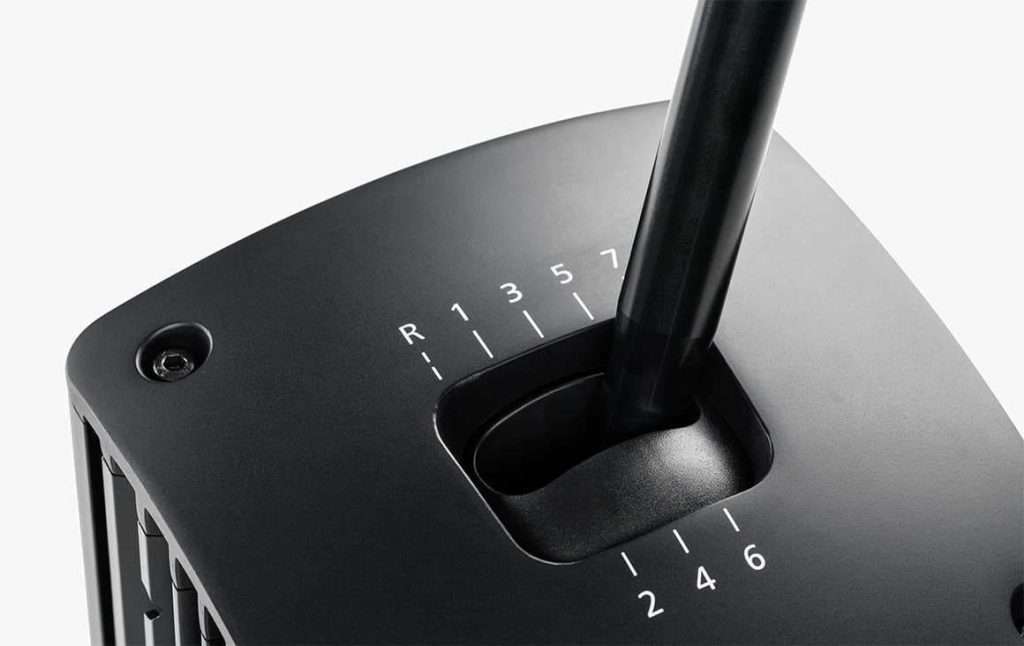
Image Source: Fanatec
Start With the Cable
If your Fanatec handbrake is showing random input or flickering at 1-2%, the cable is the first place to look.
Pull the 3.5 mm-to-RJ12 cable away from the wheelbase power brick. Then, separate it from power cables, USB cables, and anything else that is live nearby. If you’ve got it zip-tied alongside the rest of your wiring, undo that and give it some breathing room. Once you’ve rerouted it, check the axis again in the Fanatec App.
The V1.5 cable path seems more vulnerable to electrical interference than it should be. That’s why some people get a clean signal one day and then start seeing ghost pulls the moment they reorganise their cables or move the power supply.
If rerouting helps but doesn’t fully sort it, clip a ferrite core onto the cable and test again. They cost next to nothing, take seconds to fit, and they’re often enough to clean up minor interference. You can also find third-party shielded replacement cables made for Fanatec handbrakes. It’s worth trying if rerouting and ferrites haven’t fixed it, but they’re not a guaranteed solution.
If the ghost input only shows up once the handbrake is bolted to a metal cockpit, try isolating the mount. Nylon washers, plastic spacers, or a strip of rubber between the handbrake and the bracket will tell you quickly whether the rig frame is part of the problem.
Change one thing, check the axis again, then move on. That’s how you find the fix without wasting a weekend.
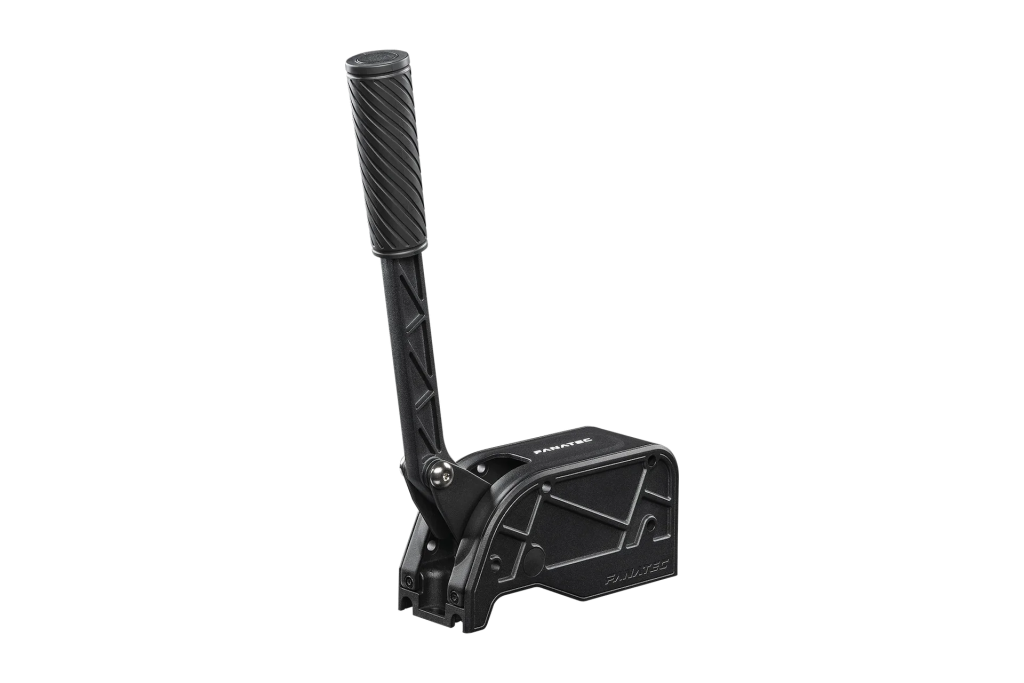
Image Source: Fanatec
Sort the Software Before You Blame the Hardware
If the cable fixes didn’t clean up the input, the software side is next.
Start simple. Shut the base down, wait a few seconds, turn it back on, and check the handbrake axis again in the Fanatec App. The App is where Fanatec is putting all its development now. The old Driver and FanaLab packages are legacy at this point, so the App is what you want.
Once you’re in, update anything that’s out of date and retest before you touch anything else. Fanatec has already pushed fixes for handbrake problems in past updates, including broken min/max calibration, auto-calibration bugs, and flickering input on some setups. Old software can make a perfectly fine handbrake look faulty, and that’s a frustrating rabbit hole to go down for nothing.
The handbrake also doesn’t behave the same across all connection paths. Plugged into the wheelbase, it runs in an automatic analogue calibration mode. When plugged into the ClubSport USB Adapter, you get manual min/max calibration instead, and you’ll need a firmware update on the adapter for that. Two people with the same handbrake can see completely different calibration options just because they’ve wired it differently.
If you’re on PC and the App is behaving oddly, run Driver 474 as a secondary test before you write off the handbrake. It’s not the active software path anymore, but it’ll quickly tell you whether the problem comes from the hand brake or the app itself. Driver 474 is still available in Fanatec’s software archive.
Console users have fewer options here. You can power-cycle the base, swap the connection path, and check in-game behaviour, but firmware updates and proper software troubleshooting still require a Windows PC. When you do connect to a PC, plug straight into a motherboard USB port. Fanatec recommends that over hubs or extensions, and it rules out one more variable.

Image Source: Fanatec
Check the Handbrake Itself
If the signal still isn’t clean after cable routing and software, it’s time to look at the handbrake.
Start with the wiggle test. Watch the axis in the Fanatec App and gently move the 3.5 mm plug at the handbrake end. Then do the same at the other end, where the cable meets the wheelbase or pedal port. If the signal jumps when the cable moves, that’s a physical connection problem, full stop. Calibration has nothing to do with it.
Before you crack anything open, try plugging the handbrake into a different port. You can run it through the wheelbase, through compatible pedals like the CSL Elite V2 or ClubSport V3, or through the ClubSport USB Adapter on PC. If the ghost input follows the handbrake to every port, the handbrake or its cable is the problem. If it only happens on one specific port, that’s where the fault is.
If it’s following the handbrake, check the potentiometer. Fanatec’s support article on flickering and jumping ClubSport Handbrake input recommends removing the top cover, cleaning the potentiometer with compressed air, and retesting. Do that before you start pricing replacement parts. Dirt and wear inside the sensor can make it appear dead from the outside.
If you’ve rerouted cables, updated software, swapped the connection path, wiggle-tested both ends, and cleaned the potentiometer, but the ghost pulls are still there, open a support ticket. Include a short video of the axis misbehaving in the Fanatec App, your firmware version, how the handbrake is connected, and what you’ve already tried. That detail upfront usually saves a lot of back and forth.
If you’ve worked through all of this and still can’t tell whether you’re dealing with a setup issue or a hardware failure, SimStaff can help. We offer remote troubleshooting calls where a technician walks you through the diagnostics so you get a clear answer before you spend money on parts or repairs you might not need.