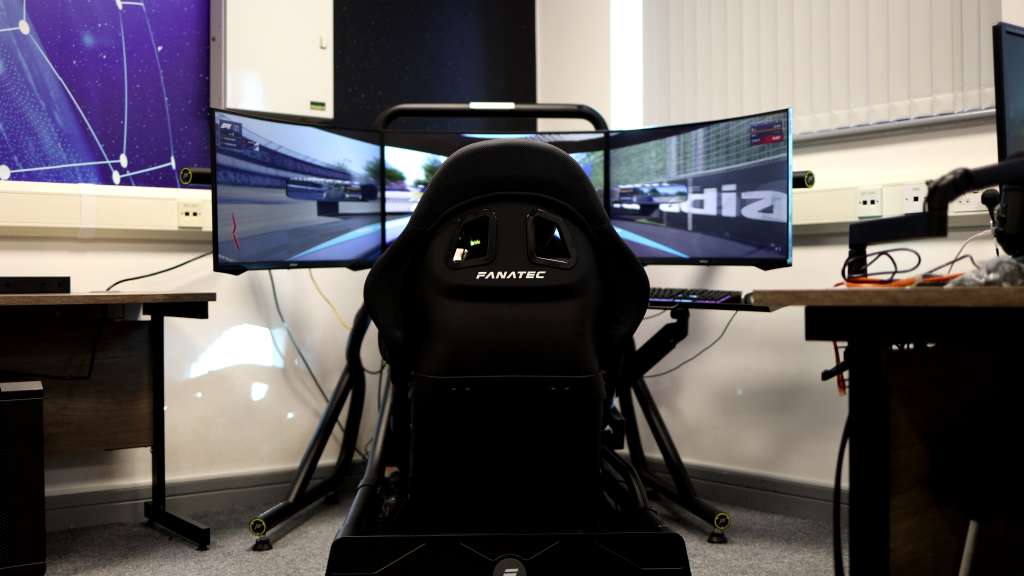
In qualifying, a driver radios in: ‘I’m getting no feel through the wheel.’ The engineer doesn’t tell them to keep pushing. They bring the car in, find the fault, and fix it. You can’t drive fast when you’re guessing what the car’s doing.
Same principle with your T248. When it twitches on straights, feels weak, or refuses to calibrate, you’re driving blind. Most of the time, it’s not a dead motor. It’s drivers, power, calibration, or in-game FFB cranked too high.
This guide covers the quick fixes that solve most T248 problems, the platform-specific quirks on PC and console, and how to tell when it’s actually hardware that needs repair.
What’s Wrong With Your T248?
Before you fix anything, work out what ‘twitchy’ means for your wheel. Broken FFB on a T248 looks like this:
- Wheel violently jerks left and right on straights
- Force feedback feels weak or completely gone, even though the wheel powers on fine
- Notchy, grindy feel when you turn, like counting gear teeth
- Wheel sits at an angle when the car’s going straight in-game
- Calibration spins endlessly and never settles
Most of that traces back to software, calibration, or power delivery, not a dead motor. Start with the simple stuff.
The Five-Minute Fix
Fix the basics first. These steps clear up most T248 force feedback problems.
Power and Connections
Plug the power brick straight into a wall socket. Not a power strip, not an extension lead.
USB cable goes directly into a rear USB port on your PC or console. No hubs, no front-panel ports, no extensions.
If the wheel was working fine and suddenly stopped, pull both power and USB out, wait a few seconds, then plug them back in firmly. Let the wheel do its full calibration spin. If it calibrates cleanly now, you’ve already fixed it.
Drivers (PC Only)
Unplug the wheel.
Download the latest T248 driver package from the Thrustmaster support page. Don’t reuse an old installer sitting in your Downloads folder.
Remove any existing Thrustmaster wheel drivers, then restart your PC. After the restart, run the fresh installer, let it finish, and restart again.
Once you’re back on the desktop, plug the wheel into a rear USB port and open the Thrustmaster Control Panel. The wheel should show up as a T248, not a generic device. Run the force feedback test. It should feel smooth and strong, not notchy or weak.
If your problems started right after a driver update and nothing else changed, try the previous driver version.
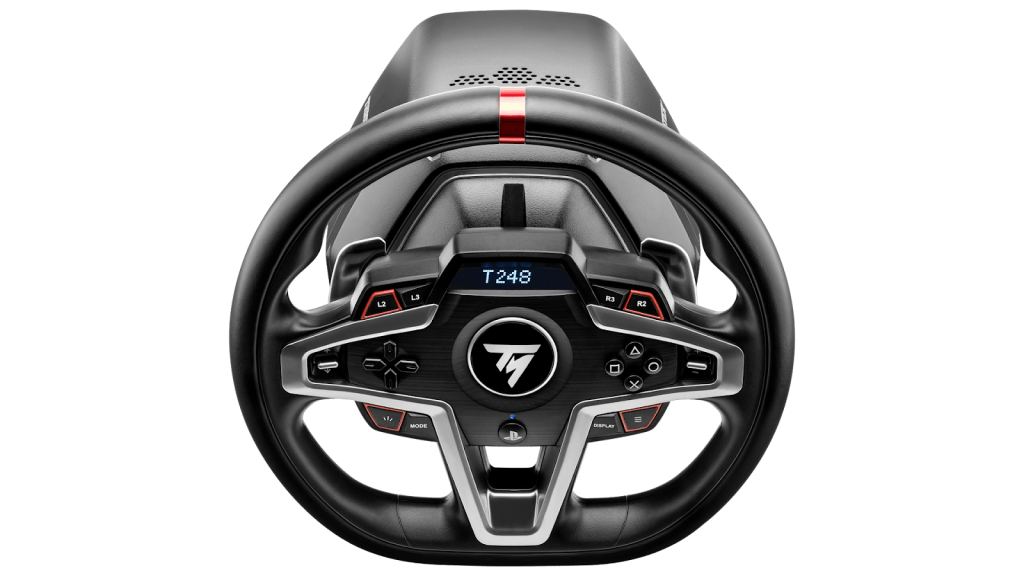
Image Source: Thrustmaster
Firmware (PC only)
Make sure the wheel is in PC mode. Run the firmware updater included in the Thrustmaster package. Follow the prompts, and don’t touch the USB or power cables until it finishes.
A clean firmware update clears up most startup FFB issues, random twitching around the centre, and calibration problems that appeared after a game or Windows update.
Recalibrate the Wheel
Let the auto-calibration run first. When you power the wheel on, it should spin left, spin right, then settle roughly in the middle.
If it keeps looping or always comes back off-centre, do a manual calibration:
- On PC, set rotation to 900° in the Thrustmaster Control Panel (or the equivalent setting on console).
- Unplug the USB, wait a few seconds, then plug it back in and let the initial auto-calibration finish.
- Turn the wheel fully left until it hits the stop.
- Turn it fully right until it hits the stop.
- Bring it back to dead centre as accurately as you can.
- While holding it centred:
- On the PlayStation version, press and hold SHARE + OPTIONS + MODE.
- On the Xbox version, press and hold VIEW + MENU + MODE.
- Keep holding until “SAVE” appears on the wheel display, then release.
That sequence stores the centre point in the wheel’s internal memory. If the wheel’s still crooked after that, you’re dealing with something deeper than calibration drift
Platform-Specific Fixes
Once power, drivers, firmware, and calibration are sorted, most of what’s left comes from platform quirks.
PC (Windows 10/11)
Windows will put your wheel’s USB port to sleep mid-race. Stop it:
- Open Device Manager, expand Universal Serial Bus controllers
- Find each USB Root Hub or Generic USB Hub, right-click it, and go to Properties
- Under Power Management, untick “Allow the computer to turn off this device to save power”
Next, turn off Fast Startup:
- Control Panel > Power Options > Choose what the power buttons do
- Click “Change settings that are currently unavailable”
- Untick “Turn on fast startup”, save
A proper boot loads the driver from scratch instead of waking it from sleep.
If the wheel still feels off-centre in every game, run joy.cpl from the Windows search bar. Open the T248 properties and reset the calibration. Let the wheel calibrate again, then check the Thrustmaster Control Panel to confirm it’s straight.
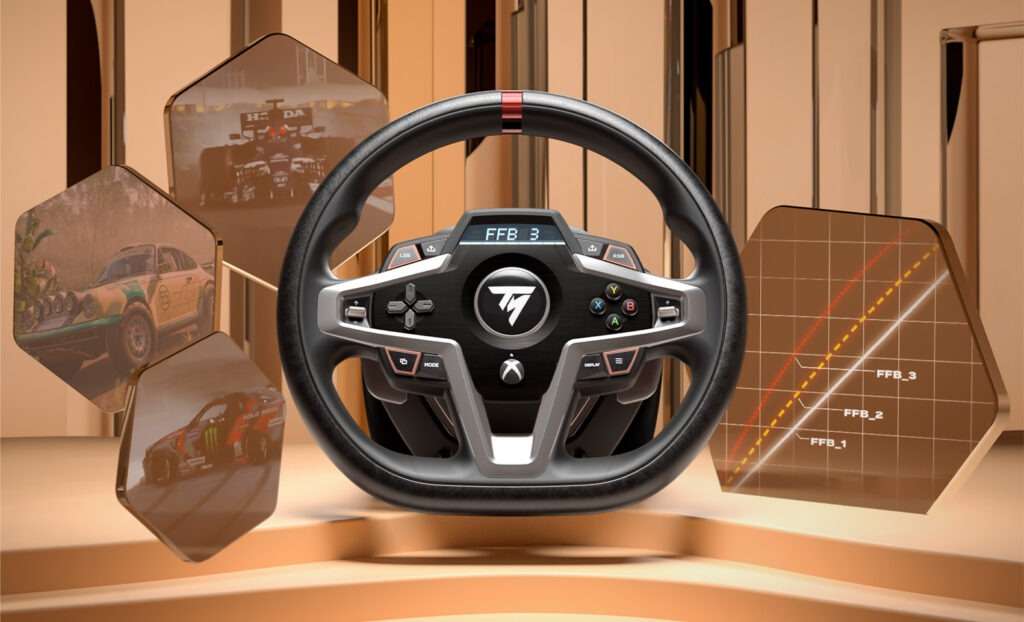
Image Source: Thrustmaster
Console (PlayStation/Xbox)
On console, the biggest problems are wrong mode, games that didn’t shut down properly, and Quick Resume.
Check the mode first:
- Press MODE and look at the LED colour
- Orange: PlayStation mode
- Blue or green: Xbox mode
Wrong mode means either no FFB, or the console won’t recognise the wheel at all. If you’re not sure, hold MODE for a few seconds to switch, then reboot the console.
For a clean start:
- Power the console off completely (not Rest or Standby)
- Unplug the wheel
- Boot back to the home screen
- Plug the wheel into a rear USB port and let it calibrate
On Xbox Series consoles, turn off Quick Resume for your racing games. Quick Resume brings a game back with the FFB half-asleep. Wheel wakes up, forces don’t.
Always update firmware on PC first using Thrustmaster’s tools, then move the wheel back to console. The console can’t update the firmware itself.
In-Game Settings
If the wheel’s fighting you on straights, your in-game FFB is too high.
Start here:
- Set overall FFB strength in the game to around 50%
- Test it on the track and see how it feels
- If the shaking stops when you drop the strength, you were overloading the motor
Then sort the wheel itself:
- Press MODE to bring up the T248 display
- Set FFB mode to 1
- Set FORCE somewhere in the middle, not maxed out
Treat that as your baseline and nudge strength up in small steps from there. If the wheel starts chattering or oscillating again, drop it back down.
If the wheel still feels twitchy around the centre:
- Lower the game’s FFB gain a bit more
- Reduce extra sliders like “road effect,” “rumble,” or “enhanced understeer.” These add a layer of vibration on top of the main force
- Keep damper low to moderate. Too much turns the wheel into a boat anchor.
The T248 has a small deadzone around the centre by design. It comes from the hybrid belt and gear system. A tiny soft spot right in the middle is normal, not a fault. If it bothers you, a touch of in-game damper can smooth it without turning the wheel into a brick.

Image Source: Laptop Mag
Mechanical Checks
If you’ve sorted power, drivers, firmware, calibration, and in-game settings, and the wheel still feels wrong, check the hardware.
Turn the wheel off and unplug the power. Rotate the rim slowly by hand from lock to lock. It should feel smooth with a bit of natural resistance, not like it’s grinding through teeth or snagging.
Plug the wheel back in and watch a fresh calibration from start to finish. Watch and listen: one clean spin left, one clean spin right, then back to centre. Light motor noise is normal. Repeated clacks, scraping, or harsh buzzing through the rim are not.
Run a short 10-15-minute session of normal driving. When you’re done, put your hand on top of the base. Warm is fine. Too hot to keep your hand there is not.
Stop and call it hardware if you see any of this:
- Grinding or loud clacking during calibration
- The motor never moves under its own power, even in the PC force feedback test
- The wheel still sits off-centre after a successful manual calibration
- FFB cuts in and out at random, regardless of game or settings
- The base gets worryingly hot in a short run, or smells like burning
- You’ve worked through power, drivers, firmware, calibration, and in-game tweaks, and nothing’s changed
Once you hit that list, more tweaking won’t do any good. You’re no longer fighting a settings problem. You’re fighting a bad motor, sensor, or board.
Image Source: Thrustmaster
When to Stop Guessing and Call Support
If your T248 is still twitchy, dead, or noisy after all this, it needs a proper diagnosis, not another evening of menu diving.
If the wheel’s still under warranty, contact Thrustmaster support first. They can confirm whether it’s a known fault, arrange an RMA, or advise on replacement if the base has failed.
If you’d rather have someone look at your complete setup, book a free consultation with SimStaff. We deal with T248 issues regularly. A short remote session is usually enough to tell whether it’s a weird software edge case or a failing base. When parts are needed, we use genuine components and warranty-safe procedures.
If you’ve already spent hours reinstalling drivers and trawling forums, don’t burn another weekend guessing. Let someone who’s seen dozens of broken and misconfigured T248s tell you whether it’s a quick fix or needs proper repair.
Most twitchy T248 behaviour comes from drivers, power, calibration, or in-game FFB that’s too high. If you’ve worked through this guide and you’re back to feeling the car and setting lap times, you’re sorted. If the wheel’s still fighting you, stop guessing and get a tech involved.