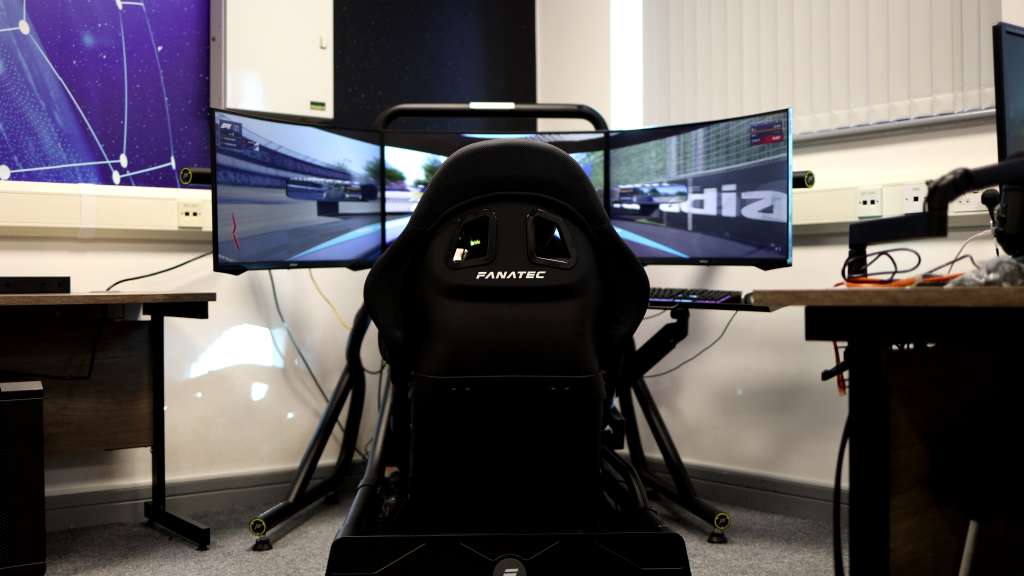
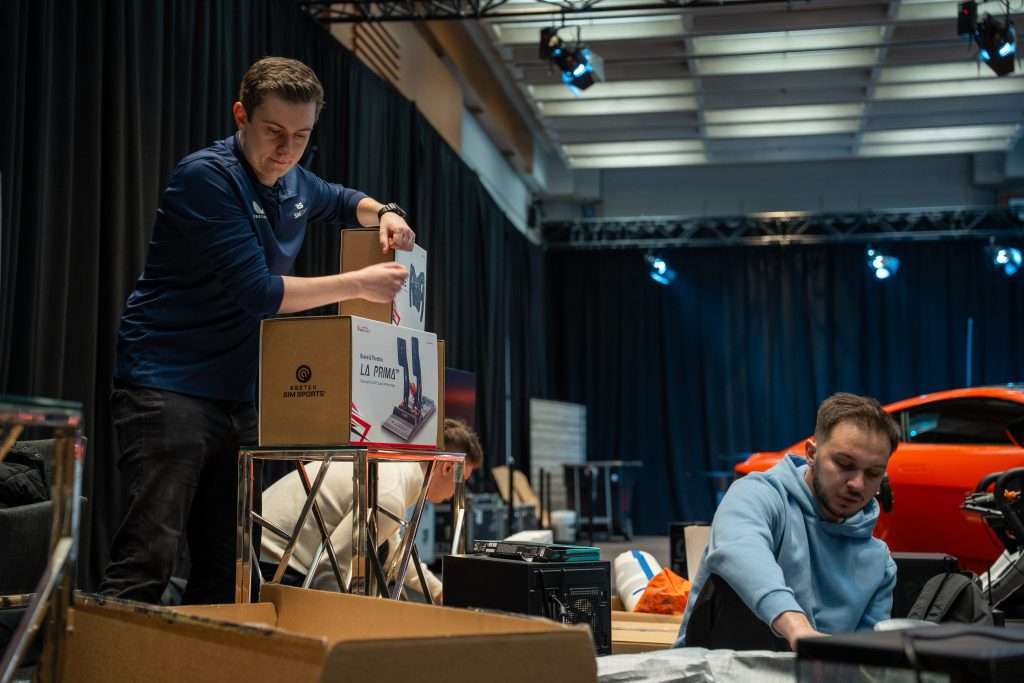
Your rig works in Assetto Corsa. iRacing, too. Windows sees every device, and your wheelbase, pedals, shifter, handbrake, and button box all show up in their own apps, each one on its own USB cable.
Then you load Forza Horizon 5 or 6, and a device drops out. The pedals go dead, or the wheel turns with no weight behind it.
That’s when people start searching for the Forza Horizon 5 multi-USB device limit. There’s no fixed cap, though. What usually breaks a mixed rig is device order, the wheel profile, USB routing, and, on Forza Horizon 6, force feedback getting sent to the wrong device.
So before you reinstall drivers or start sending the base back, it’s worth knowing what Forza does with your devices. The fix is almost always free.
What Forza Officially Says About Multi-USB
People blame the “Forza Horizon 5 multi-USB device limit” for nearly every wheel problem in the game. There isn’t a fixed limit, though, and what trips people up is messier than a single number.
Both Forza Horizon 5 and Forza Horizon 6 support multi-USB setups on PC. The trouble starts when these games have to sort your devices on their own: a wheel base on one port, pedals on another, a shifter on another, a handbrake somewhere else, and maybe a button box too.
In FH6, force feedback goes to whatever the game registers as Device 1. If your pedals, shifter, handbrake, or another controller takes that slot, the wheel still steers, but the force feedback can vanish.
Forza also says you need a custom wheel profile once you’re running multiple devices or plugging them into separate USB ports. Without it, the game might see the wheel and ignore the pedals. It could also read one input and leave the rest of the rig blank.
So if your setup works in Assetto Corsa, iRacing, or RaceRoom but falls apart in Forza, your gear is probably fine. Forza’s just reading the rig in the wrong order.
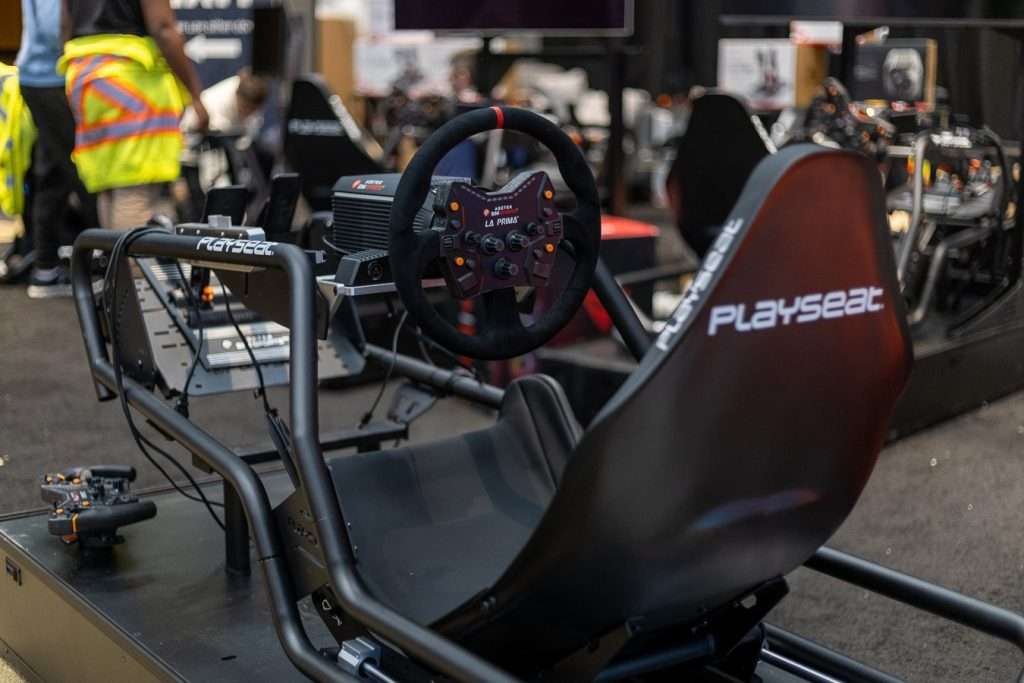
Image Source: SimStaff
What Goes Wrong on a Mixed Rig
You can usually spot a USB-order problem by the way one part of the rig works while another part disappears.
Common signs:
- The wheel turns the car, but there’s no force feedback.
- The pedals show up in Windows, G Hub, Pit House, or the brand app, but Forza won’t bind throttle or brake.
- The handbrake maps once, then stops after a restart.
- The shifter works until you plug in another USB device.
- A button box or spare controller steals input focus.
- The game lets you bind controls, then refuses to save the profile.
The “Forza handbrake not working” warning can mean a few different things. The handbrake might be on the wrong axis, it might be hidden behind another controller, or Forza might have locked onto the wheel and ignored everything else.
Same story with “Forza pedals not detected” or “Forza shifter not working.” Before you reinstall drivers or blame the hardware, check whether Forza is seeing the right device in the first place.

Image Source: SimStaff
Save yourself some time by starting with the boring checks.
Update the firmware on your wheelbase, pedals, shifter, and handbrake. Both the FH5 and FH6 support pages tell you to sort out drivers and firmware before anything else, and they specifically tell G29 and G920 owners to install the latest Logitech G Hub, or the wheel won’t work properly.
Plug the wheelbase straight into the PC. Use a rear motherboard USB 3.0 port if you’ve got one. Leave the USB hub out of it until steering and force feedback are working.
Forza recommends dedicated USB 3.0 ports and warns that unplugging and replugging a wheel can give it a wrong VID/PID (the ID Windows uses to recognise the device), which makes the game read it incorrectly.
Then strip the rig back:
- Unplug the shifter, handbrake, button box, Stream Deck, spare controller, and any other USB input.
- Launch Forza with only the wheelbase connected.
- Confirm steering and force feedback under the wheel’s Custom Profile.
- Add the pedals.
- Test throttle and brake.
- Add the shifter.
- Add the handbrake.
- Save the profile.
- Restart the game and test again.
If force feedback dies the moment the shifter goes in, the shifter has probably taken the “Device 1” slot your wheel needed.
If the pedals disappear when you add them to a separate USB port, build a custom wheel profile before you do anything else. Don’t lean on the default profile once your rig has separate USB devices.
Bind only the controls you need first: steering, throttle, brake, clutch, handbrake, shift up, shift down, look back, and pause. Get the car moving, then map the extra buttons.

Image Source: SimStaff
Check Your Wheel Brand’s Forza Tools First
If your wheel brand has its Forza setup tool, use that before you touch vJoy.
MOZA owners should start in Pit House before touching vJoy. If you’re playing FH5, use MOZA’s Forza Horizon 4 and 5 FFB guide, which covers Pit House setup for Forza Horizon force feedback, pedals, steering angle, and wheel settings. If you’re playing FH6, use MOZA’s Forza Horizon 6 setup guide. For FH6 force feedback issues, MOZA tells you to disconnect the handbrake, shifter, pedals, and other peripherals first; leave only the MOZA base connected, set the MOZA base as the preferred device in Windows Game Controller Settings, and re-enter the game to confirm the base shows as Device 1. Once force feedback works, add the handbrake, shifter, and pedals one at a time.
If you use a Logitech G29 or G920, the latest G Hub isn’t optional. Forza’s support pages say the wheel won’t work as intended without it.
Fanatec, Thrustmaster, Simagic, and Simucube users should check the brand app, the firmware tool, and the wheel mode before building a virtual device. Some bases behave better in compatibility mode. Some pedals work better through the wheelbase than as their own separate USB device.
Run everything through the wheelbase when your brand lets you. If your pedals, shifter, or handbrake can connect to the base instead of the PC, test that first. Forza has an easier time with one wheelbase reporting the whole rig than with four separate devices all demanding attention.
Use EmuWheel and vJoy When Forza Still Drops Devices
EmuWheel is the fallback when Forza keeps losing part of the rig after the basic fixes.
The idea’s simple enough. vJoy creates a virtual joystick, and EmuWheel feeds your wheel, pedals, shifter, handbrake, and button box into it. Forza then sees one controller instead of several separate inputs. vJoy itself is a driver Windows treats as a normal joystick, fed by another app.
Keep the warning label on this one. Forza EmuWheel’s page lists Forza Horizon 3, Forza Motorsport 6: Apex, and Forza Motorsport 7 on PC. It doesn’t list FH5 or FH6. So, on the newer Horizon games, treat it as a community workaround. It might rescue a mixed rig. It might also do nothing, especially when the setup mixes brands.
If you’re going to try it:
- Create the vJoy device.
- Map steering, throttle, brake, clutch, handbrake, and shifter inputs in EmuWheel.
- Hide any duplicate physical controllers if Forza keeps reading them too.
- Launch Forza.
- Build a custom wheel profile around the virtual device.
- Test one car before mapping every spare button.
HidHide helps when Forza reads both the physical controller and the virtual one at the same time. It hides selected gamepads or joysticks from Windows apps while letting the apps you choose still see them. Use it carefully, though. If you hide the wrong device, the wheel can drop out of the game completely.
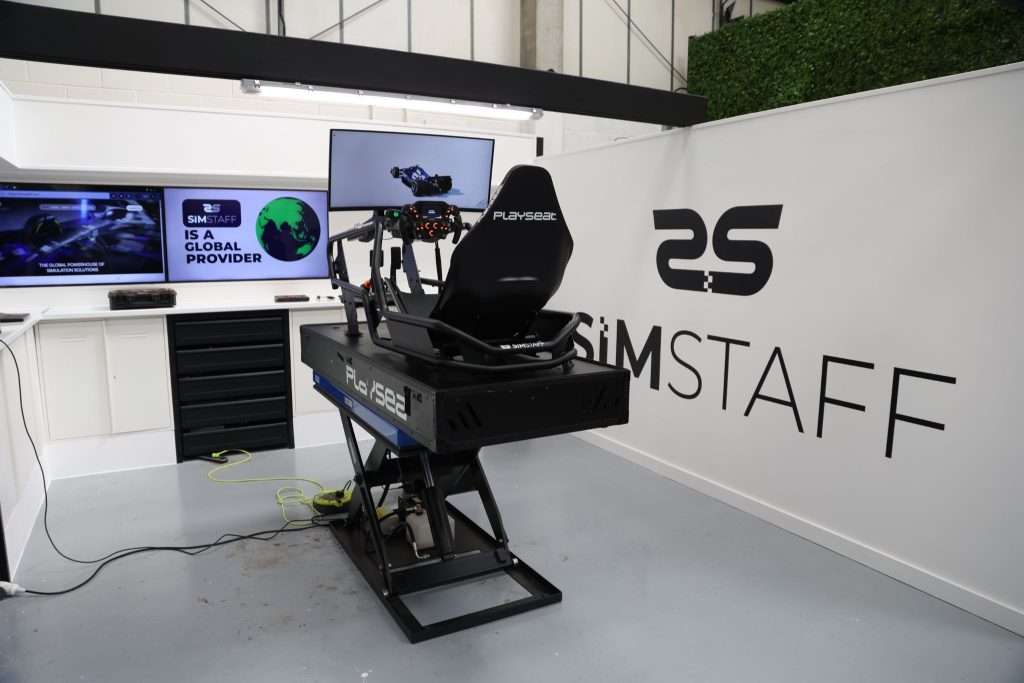
Image Source: SimStaff
Know When to Stop Troubleshooting
If you’ve tried every USB port in every order and Forza still drops a device, stop changing five things at once.
Write down the last setup that worked. Something like this is enough:
- Wheelbase only: works, FFB works
- Wheelbase + pedals: works
- Add shifter: FFB dies
- Add handbrake instead: works
- Add shifter and handbrake together: pedals disappear
That tells you more than another random reinstall.
Then work out whether the problem follows the device or the port. If the handbrake fails no matter where it plugs in, the issue is probably mapping, axis type, or driver behaviour. If anything plugged into one front-panel port causes trouble, blame the port or the hub first.
Only wipe profiles once you’ve tested the basics. Deleting every Forza input profile can fix a broken setup, but it also throws away your last working reference point.
FH6 is still fresh, and Forza’s wheel table still marks plenty of hardware with partial support or “additional support coming in update,” MOZA’s range included. If your wheel works everywhere else and only drops buttons or force feedback in FH6, don’t replace the base yet. Fix the device order first, then watch for patches if your model is still on partial support.
This is where outside help saves hours. If you’re still losing force feedback, pedals, or handbrake input after the wheelbase works on its own, SimRigSupport can narrow it down to device order, firmware, the wheel profile, USB routing, or a vJoy/EmuWheel conflict. And if you’re still planning the rig, SimStaff can help you pick gear that gives Forza fewer chances to get confused or rent you a setup to test before you commit.